
Registration and Connecting a Wallet on 8lends
No email, no password: on 8lends your wallet is your account, and only you hold the private key that controls your funds.
To work on 8lends you can use your own Web3 wallet (MetaMask, Coinbase Wallet, or another EVM wallet) or the built-in 8lends wallet. You register on app.8lends.io by connecting an external wallet, with email, with Google, or via Maclear — if you sign in with email or Google, a built-in wallet is created for you automatically. Your account is a user profile to which your wallet is linked. The platform does not gain control over your funds — all investments are stored on-chain in a smart contract on the Base blockchain. The process takes 2–3 minutes.
Video instructions
A step-by-step video on connecting a wallet is available on the 8lends YouTube channel.
The video shows the specific steps in the interface: how to install MetaMask, how to add the Base network, how to click Connect Wallet on app.8lends.io, and which windows appear in the wallet. This text is a companion to the video for those who want to clarify details or keep the step-by-step sequence.
What is a Web3 wallet
A Web3 wallet is an application or browser extension that:
- Stores the private key to your blockchain addresses
- Signs transactions on your behalf
- Connects to decentralized applications (dApps), including 8lends
This is not a bank account — the wallet has no intermediary owner. Only you control the private key, and only you can dispose of the funds. If you lose your seed phrase (12 or 24 words created when setting up the wallet), it is impossible to recover access.
Which wallets does 8lends support
8lends offers direct connection for MetaMask and Coinbase Wallet; other wallets connect via WalletConnect or as a detected browser wallet. Most EVM-compatible wallets are supported:
| Wallet | Type | Features |
|---|---|---|
| MetaMask | Browser extension + mobile app | Most popular, direct integration |
| Trust Wallet | Mobile app | Convenient for smartphones, via WalletConnect |
| Rabby Wallet | Browser extension | Advanced interface, better transaction display |
| Coinbase Wallet | Mobile app + extension | Convenient for Coinbase users, direct integration |
| Ledger / Trezor | Hardware wallet | Maximum security via WalletConnect or MetaMask |
| Any other EVM wallet | Via WalletConnect | Standard connection protocol |
If you don't have a wallet, it's recommended to start with MetaMask (for desktop) or Trust Wallet (for smartphone). These are the most common options, with the most tutorials available.
Step-by-step instructions — registration and connection
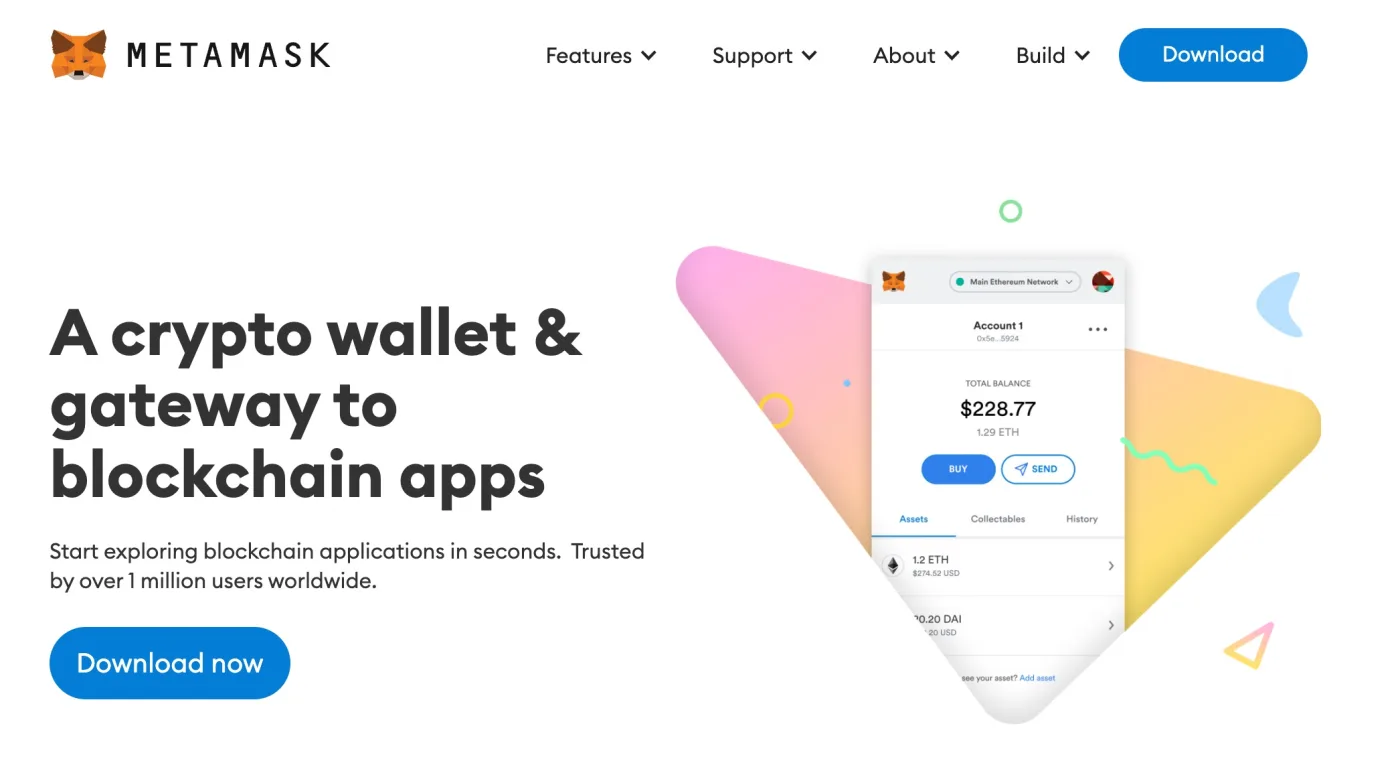
Step 1. Install a wallet (if you don't have one)
- MetaMask:metamask.io → download the extension for Chrome / Firefox / Brave or the mobile app
- Trust Wallet:trustwallet.com → download from the App Store / Google Play
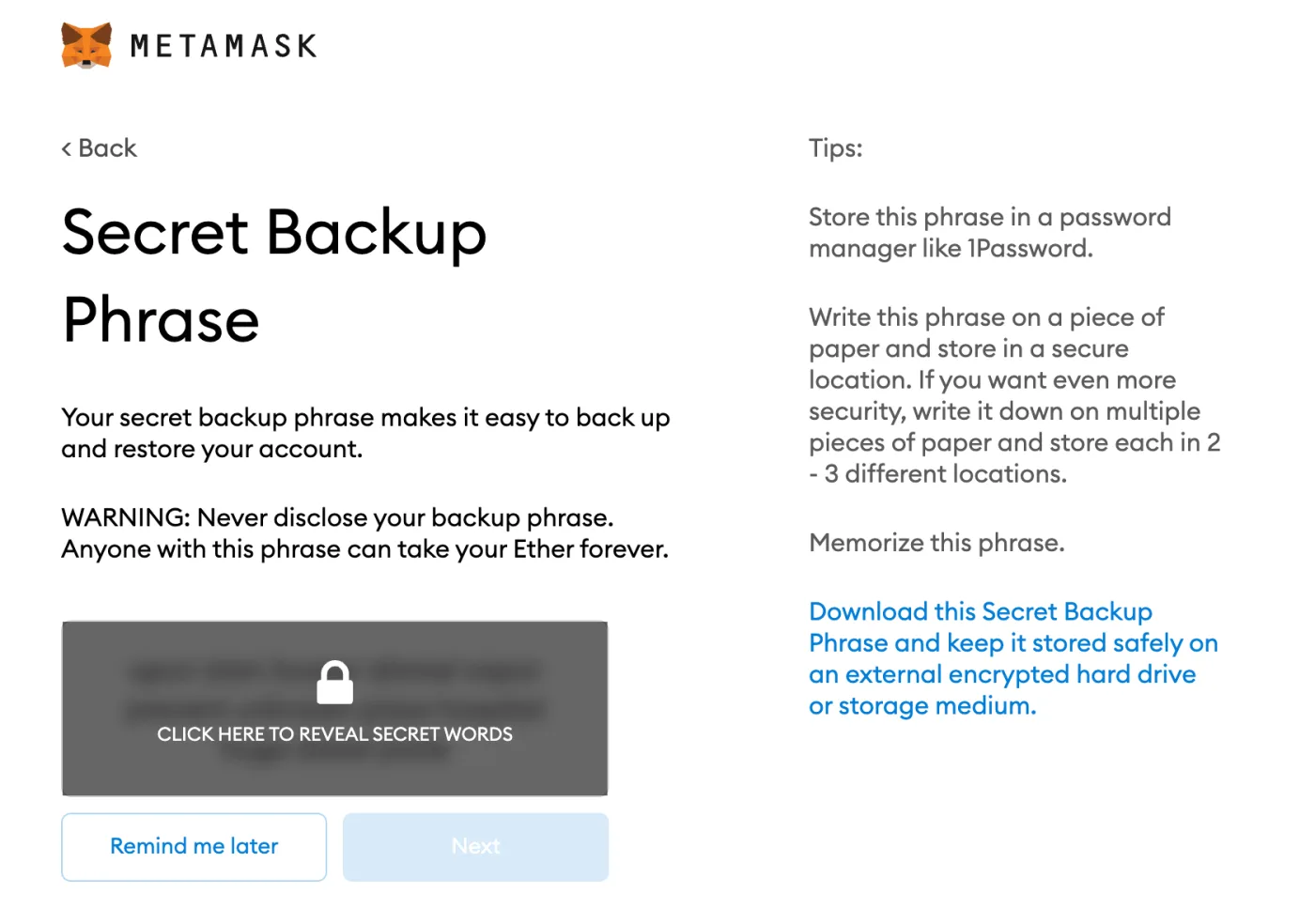
- Create a new wallet → write down the seed phrase on paper and store it in a safe place (not on your phone, not in the cloud)
- Set a password to unlock the wallet
Step 2. Add the Base network to your wallet
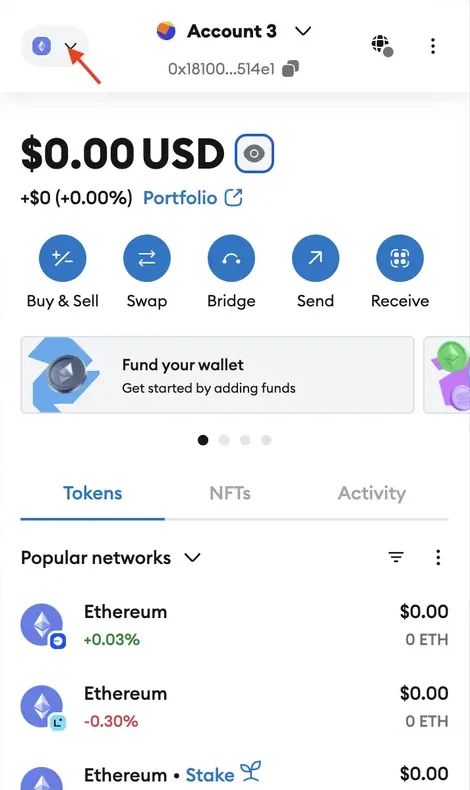
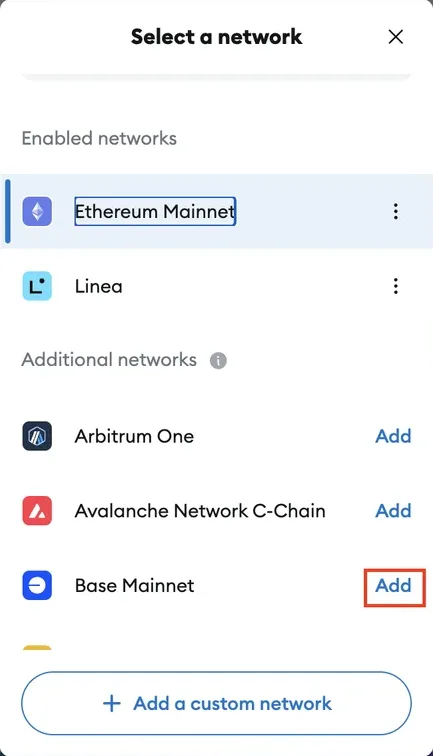
Most wallets work with Ethereum Mainnet by default. You need to add the Base network — it's an L2 from Coinbase on which 8lends operates.
- In MetaMask: Settings → Networks → Add Network → search for "Base" in the list of popular networks or add it manually:
- Network Name: Base
- RPC URL:https://mainnet.base.org
- Chain ID: 8453
- Currency Symbol: ETH
- Block Explorer:https://basescan.org
- In Trust Wallet and other wallets, Base is often already added automatically
Step 3. Go to app.8lends.io
- Open app.8lends.io in a browser (with the wallet extension installed) or in the browser inside your wallet on your phone
- Make sure the URL is exactly app.8lends.io — no phishing clones
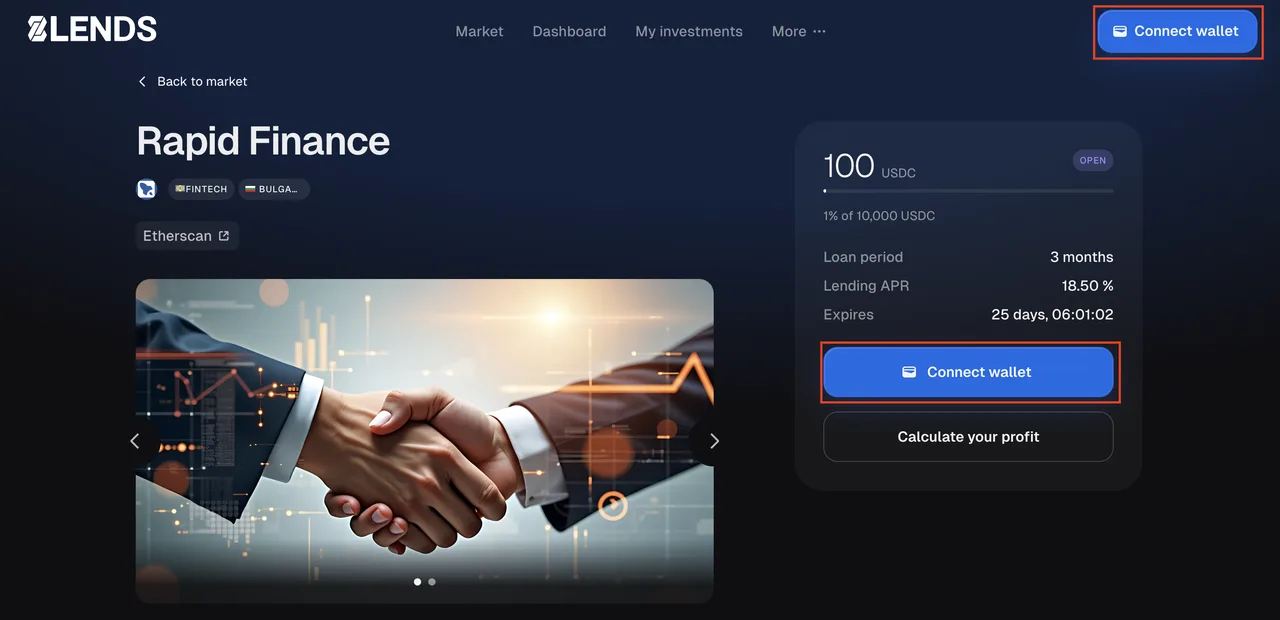
Step 4. Click "Connect Wallet"
- On the platform home page — the Connect Wallet button
- A wallet selection window will appear: MetaMask, WalletConnect, Coinbase Wallet, and others
- Select your wallet
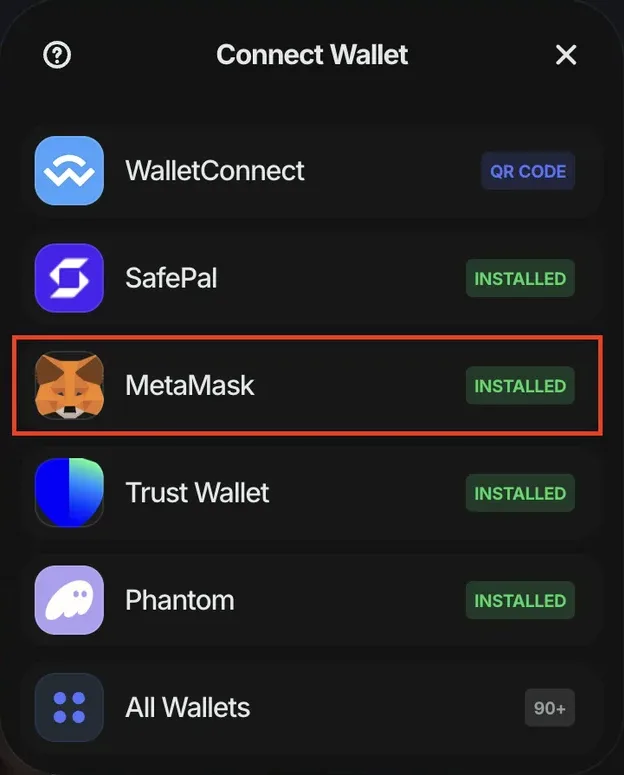
Step 5. Confirm the connection in your wallet
- In the wallet pop-up window that appears, click Connect
- The wallet will ask you to confirm which addresses to allow it to use (usually one)
- This is not a transaction or a payment — just permission for the platform to see your address and offer to sign transactions
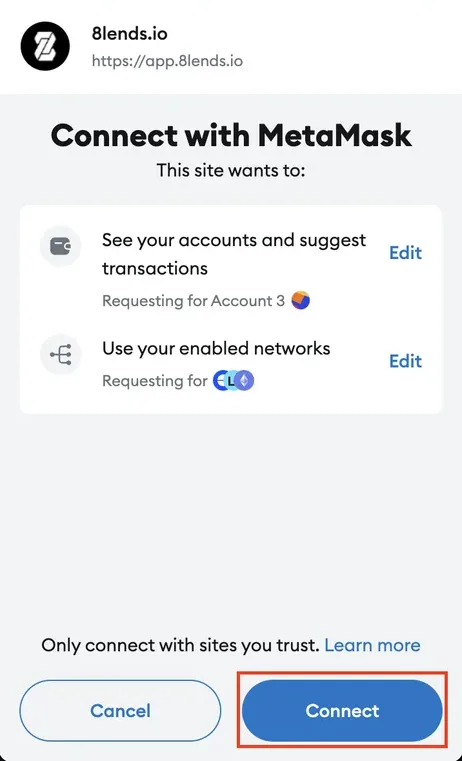
Step 6. Confirm switching to the Base network
- If the wallet is set to another network (for example, Ethereum Mainnet), 8lends will offer to switch to Base
- Confirm the switch in the wallet
- After this, the account is active, and you can proceed to KYC (if required) or directly to topping up with USDC
What happens after registration
After connecting a wallet on 8lends:
- An account is created based on your wallet address
- You can (but are not required to) provide an email for notifications about payouts and new projects
- There is no 8lends login or password — the next sign-in to the platform = a new connection of the same wallet
- All future sessions start with Connect Wallet and signing a message for authentication (no gas is spent)
How to log in to 8lends next time
- Open app.8lends.io
- Click Connect Wallet → select the same wallet you used at registration
- Sign the message in your wallet (this is free and requires no gas)
- Done — your investments, balance, and history are immediately visible
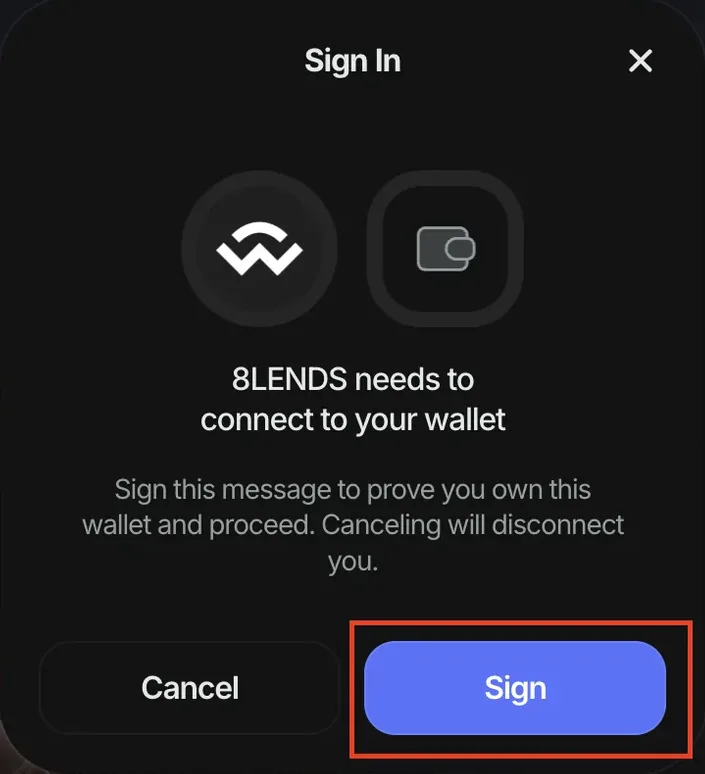
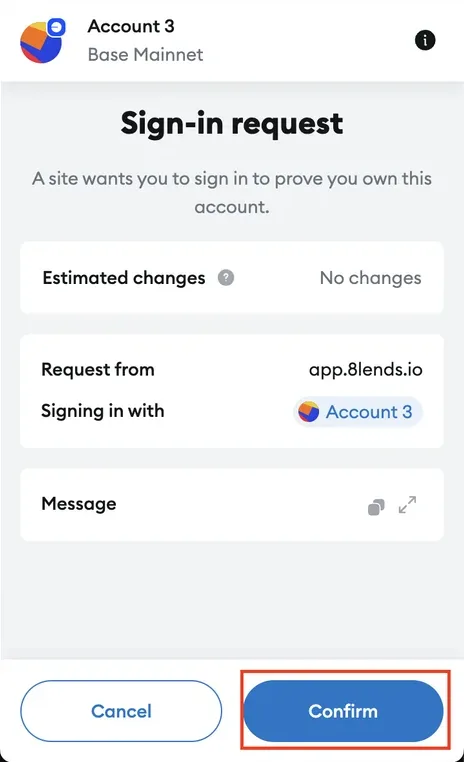
Connection security
- 8lends never requests your private key or seed phrase — never and under no circumstances
- Connecting via MetaMask/WalletConnect only gives the platform the right to offer you transactions to sign
- Every transaction (investment, claim, sale on the Secondary Market) requires your explicit confirmation in the wallet
- The platform cannot withdraw funds without your signature
- If someone asks for your seed phrase pretending to be 8lends support, it's a scammer. More on scam protection
If something goes wrong
| Problem | What to do |
|---|---|
| The Connect Wallet button doesn't respond | Reload the page, check that the wallet is unlocked |
| The wallet doesn't appear in the list | Use WalletConnect and scan the QR code through the wallet app |
| The connection is stuck | Close the pop-up windows, try again |
| The Base network doesn't appear | Add it manually using the parameters above or use [chainlist.org](https://chainlist.org/) |
| No ETH for gas | Buy a small amount of ETH on an exchange and withdraw it to Base, or bridge it from Ethereum |
Frequently asked questions
Can I register by email instead of connecting a wallet? Yes. You can sign in with email or Google — a built-in 8lends wallet is then created for you automatically and managed through Privy. If you prefer full self-custody, connect your own external wallet instead.
Which wallet is best for a beginner to choose? For desktop — MetaMask (the largest base of tutorials, direct integration). For smartphone — Trust Wallet or mobile MetaMask. The main thing is that the wallet must support EVM networks (Ethereum, Base, Arbitrum, etc.).
Can I use several wallets on one account? At the moment, one account = one main wallet. More on changing a wallet
What is a seed phrase and why should I write it down? A seed phrase (12 or 24 words) is a backup copy of your wallet. If you lose your phone or delete the app, it is what allows you to restore access to the wallet. You should write it down on paper and store it separately. Never show it to anyone — whoever gets the seed phrase gets full control over the funds.
Do I invest from an exchange account (Binance / Coinbase)? No. An exchange account is a custodial account, where the funds are managed by the exchange, not you. You invest from your own external wallet or from the built-in 8lends wallet — not directly from an exchange account. Transferring from an exchange to your own wallet is a standard operation, described in How to Buy or Swap USDC and ETH on Base for 8lends.
What if I lose access to my wallet? If you have the seed phrase, you restore the wallet on a new device, and your investments remain accessible (they are tied to the address, not the device). If you don't have the seed phrase and have no access, the funds are lost forever. This is why writing down the seed phrase is a critically important step.
Can I use a hardware wallet like Ledger or Trezor? Yes. Hardware wallets provide maximum security. They connect to 8lends via MetaMask (Ledger as a provider) or directly through WalletConnect. All transactions require physical confirmation on the device — this protects you even from a compromised computer.
Can I use my Maclear account on 8lends? Yes. Sign in with "Continue with Maclear" — your Maclear and 8lends accounts are linked, and you can accept your existing Maclear KYC in one click. Maclear runs on fiat infrastructure (EUR/SEPA), while 8lends runs on the blockchain (USDC).
See also:
8lends is a platform operated by CLEARCHAIN CORP, registered with FINTRAC (Canada) as a Money Services Business. Maclear AG (Switzerland), a member of PolyReg SRO under the supervision of FINMA, acts as Collateral Agent. Regulatory framework as of September 2026.